Network Configuration Host-Only VirtualBox
a. On the right click on the VirtualBox virtual computer debian> Settings …> select the Network menu.
b. On the input Attach to: select the Host-only Adapter.
Cables connected to the network with DHCP services. If the location is there are currently a cable network that has a DHCP service, use the following steps to access it:
1. Click on the Network Manager icon in the menu bar
2. In the Ethernet Network, select an available network. By default the cable network that is detected will be named Wired Connection X, where X is the number of networks detected by the computer, starting from 1. The system will automatically detect the existing configuration on the network. If there is a DHCP service, the system will attempt to contact the server to obtain network configuration (IP address). If successful at the bottom of this network will be no menu Resolve (Disconnected), which indicates that the current computer has been connected to the network. If the menu is clicked will cause the computer is not connected to the network.
3. To connect to an existing network simply click on the name of the network.
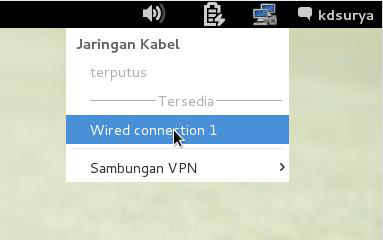
Figure 24. Selection of the cable network is detected on the Network Manager.
4. If the connection is made, the details of the connection status can be displayed via right-click on the Network Manager and choose the connection information menu (Connection Information). In addition to the IP address in this window will also display information about the DNS server address that is used when there.

Figure 25. Connection information of the selected network
Connected to a wired network with manual addressing
Addressing this need to be done if the computer wants is always accessible, because the DHCP service is no possibility of an IP address will change at different times.
1. Right-click on the Network Manager icon, and then select (Edit connection … (Edit Connections …).
2. In the window that appears select cable networks are detected on the tab Cable (Ethernet), and then click the Edit … (Edit …).
3. From the window that appears select the Layout tab IPv4 (IPv4 Settings), then the choice of methods exist select Set yourself (Manual).
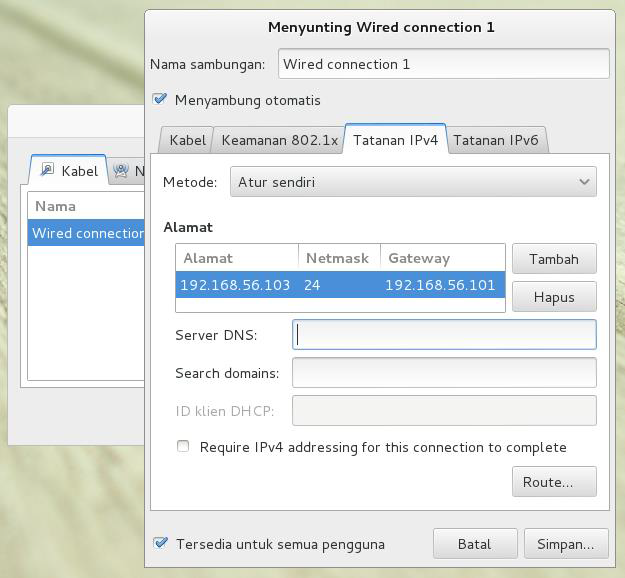
Figure 27. Display IPv4 configuration on the Network Manager.
4. Click the Add button (Add), and then specify the IP address to be used along with network mask and gateway address it.
5. If there is a DNS address information received from the network administrator to give the column a DNS server (DNS Servers). If more than one address separated by commas.
