Printing Maps With Plotter
Map printing is reported as the mapping process is done. The map can be printed on several media and sizes, using a printer or plotter. Map printing process begins with setting up the printer / plotter that will be prepared including the setting up of paper and installing drivers. Map printing steps are as follows:
1) Assemble printer / plotter according to instructions manuals
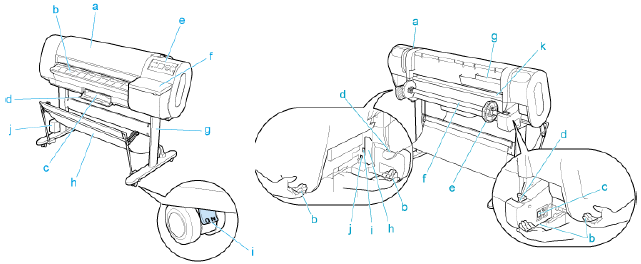
Picture 46. Assemble plotter
2) Connect the printer / plotter with a USB cable, serial or network
3) Installing the printer driver, either using the driver CD or files downloaded from the website of the manufacturer of printer / plotter.
4) Setting paper on the printer / plotter. Sheet paper feeder is placed on the front while the paper roll is placed on the rear feeder plotter with the following steps:
5) Turn on the printer
6) Select the roller as a paper source
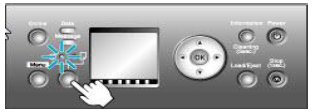
Picture 48. Select a paper source
7) Setting the paper roll on the paper roll buffer
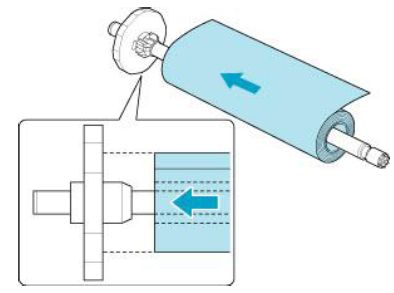
49. Picture setting up the paper roller
8) Setting the buffer in an available slot
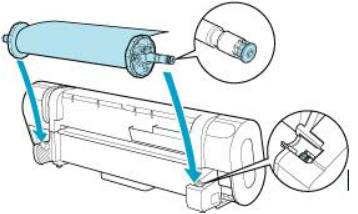
50. Picture setting up buffer
9) Load the paper roll on the plotter

Picture 51. Load paper
10) Select the type of paper used
11) Select the size of paper used
12) Print a map either directly or indirectly
13) Printing directly from ArcMap is done by using the command File -> Print
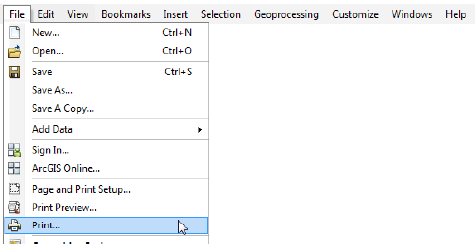
Picture 54. Print map
14) Printing is not directly done by storing the map in another format (jpg, pdf) with the command File -> Export to Folder, and then print them with the software which can read that format.
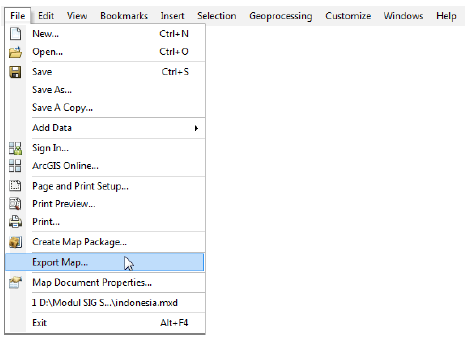
55. Exporting image maps
